Synopsis
Write your story's core overview in one focused space, then send it directly to the Beat Sheet, the Writers Room, or the Script Editor to continue developing it.
Overview
What the Synopsis panel is for and where it sits in the workflow.
The Synopsis panel is a single, distraction-free text field where you write the essential summary of your story — what it is about, who it follows, what changes, and what it means. This is the panel you open before any other writing tool: before the Beat Sheet, before the Treatment, and long before the Script Editor.
A good synopsis answers four questions in plain prose: Who is the protagonist? What do they want? What stands in their way? How do they change? In professional practice, a synopsis is typically one to three pages long and covers the entire story from beginning to end without omitting the ending.
A logline is one or two sentences. A synopsis is a prose summary of the whole story, including plot, character arc, and theme. Write the logline elsewhere; use this panel for the full story overview.
Panel Interface
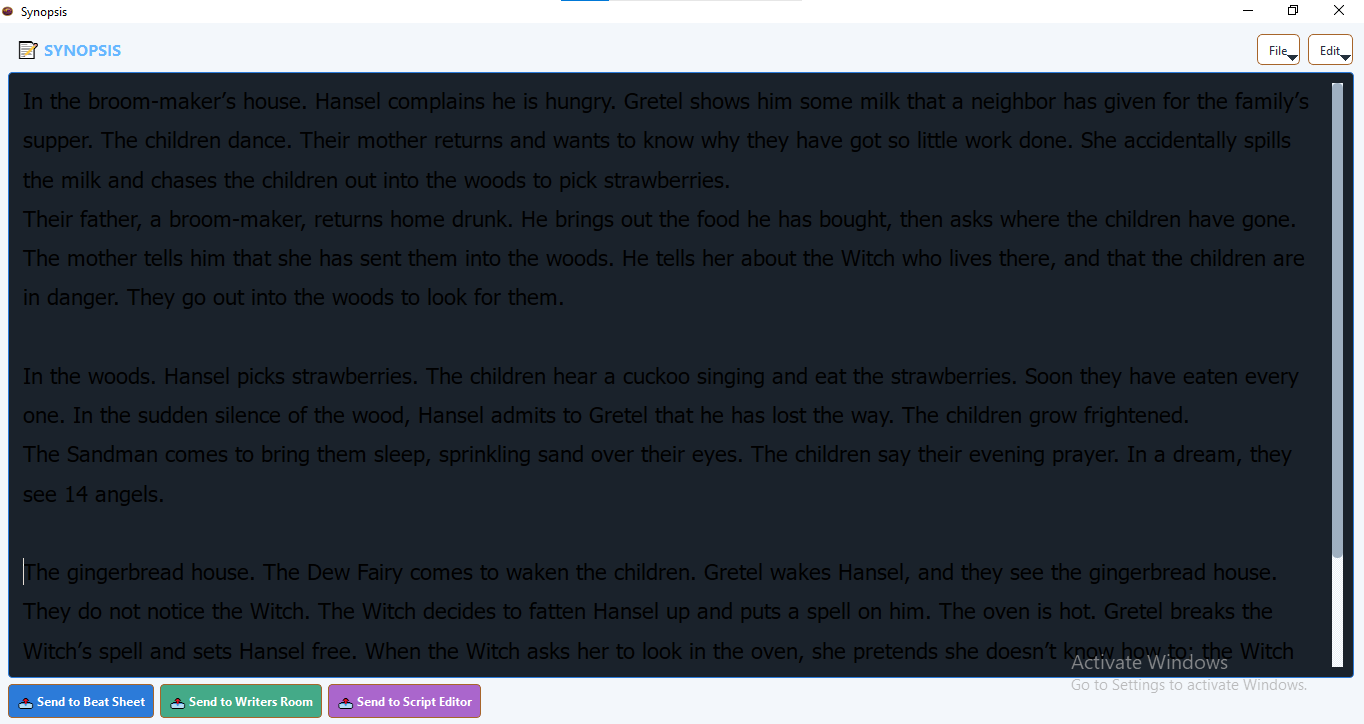
Header buttons
| Button | What it does |
|---|---|
| File | Opens a dropdown with options to open a text or PDF file, save as text, or save as PDF. |
| Edit | Opens a dropdown with standard text editing operations: Undo, Redo, Cut, Copy, Paste, Select All. |
Send buttons
Three buttons at the bottom of the panel send the current synopsis text to other panels.
| Button | Destination |
|---|---|
| 📤 Send to Beat Sheet | Splits the synopsis into individual lines and loads each as a beat card on the Beat Sheet. |
| 📤 Send to Writers Room | Places the full synopsis text into the Writers Room script view. |
| 📤 Send to Script Editor | Appends the synopsis text to the Script Editor at the current cursor position. |
Writing Your Synopsis
Click anywhere in the large text area and begin typing. There is no formatting required — the Synopsis panel stores plain text.
What to include
- The world — where and when the story is set, and what makes that world distinctive.
- The protagonist — who they are, what they want, and what flaw or wound they carry into the story.
- The inciting incident — the event that disrupts their ordinary life and sets the story in motion.
- The central conflict — the primary obstacle or antagonist standing between the protagonist and their goal.
- The midpoint shift — a reversal or revelation that raises the stakes and changes the nature of the conflict.
- The climax and resolution — how the conflict is resolved and how the protagonist has changed.
- The theme — the question the story asks, and the answer (or non-answer) it arrives at.
A synopsis always includes the ending. If you do not yet know your ending, write a provisional one. You can change it later. The act of committing an ending to the page — even a placeholder — forces clarity about what your story is building toward.
Length guidance
For a feature film: aim for one to three pages of single-spaced prose. For a TV pilot or episode: half a page to one page. For a limited series or multi-episode arc: up to five pages. The Synopsis panel accommodates any length — these are guidelines for professional practice, not software constraints.
File Operations
Access all file operations from the File dropdown in the panel header.
Open Text/PDF…
Load an existing synopsis from a plain text (.txt) or PDF (.pdf) file. The file's text replaces the current content in the editor. Use this to import a synopsis you wrote in another application or received from a collaborator.
Save Text…
Saves the current synopsis as a .txt file. A save dialog lets you choose the filename and location. The file is plain UTF-8 text and can be opened in any text editor.
Save PDF…
Saves the current synopsis as a formatted .pdf file with a "Synopsis" title heading. Use this for sharing with producers, script editors, or collaborators who prefer PDF delivery.
The Synopsis panel does not auto-save. Save your work manually whenever you make significant changes.
Sending to Other Panels
📤 Send to Beat Sheet
Thenema Writer splits the synopsis text into individual lines (blank lines are ignored) and attempts to load them into the Beat Sheet. Lines that begin with act markers (ACT I, ACT II etc.) are used as lane dividers; other lines become beat cards. This is most useful when your synopsis is already written in a structured, point-by-point style rather than as flowing prose.
If your synopsis is written as continuous paragraphs, the Beat Sheet will receive each paragraph as a single beat. You can then split, edit, or reorganise the beats on the board.
📤 Send to Writers Room
The full synopsis text is placed into the Writers Room script view, where the writing team can read it, discuss it, and begin building scene cards from it.
📤 Send to Script Editor
The synopsis text is appended to the Script Editor at the end of the current document, preceded by two blank lines. This is useful as a reference while writing — you can scroll up to the synopsis at any point to remind yourself of the story's core shape.
If you click a Send button while the text area is empty, Thenema Writer will show an information dialog and will not send anything. Write at least a draft synopsis before attempting to send.
Tips & Best Practices
Write the synopsis before anything else
The Synopsis forces you to know your story before you start structuring it. Writers who go straight to the Beat Sheet without a synopsis often find themselves building beats for a story they do not yet fully understand. The synopsis makes the Beat Sheet faster and more purposeful.
Rewrite it when the story changes
If your Beat Sheet or Treatment sessions reveal that the story has shifted — a new character, a changed ending, a different theme — come back to the Synopsis and update it. The Synopsis should always reflect where the story currently stands, not where it started.
Use plain prose, not bullet points
Synopses that producers and script editors read are prose documents. Practise writing your story in paragraphs here. If you find it easier to think in bullets, draft them in the Mind Map or the Beat Sheet first, then synthesise them into prose in the Synopsis panel.